
How to use Veygrit, on the actual screens.
Start entering and temporarily saving addresses from Wallet before signing in. Follow these three steps using the controls shown in the app.
Open WalletThese are actual Web screenshots captured without personal data. The address list is shown empty. Screenshots are in English.
Open Wallet, then Add address
Open “Wallet” in the navigation menu and choose “+ (Add address)” at the top right. You can enter an address before signing in.
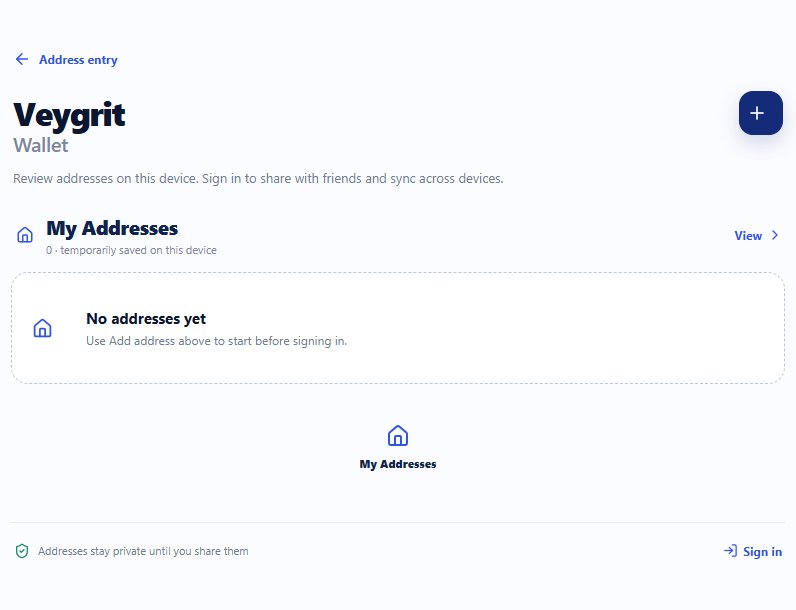
Wallet before sign-in — start with “Add address” at the top right Choose a country and enter the details
Choose the country or region and use its local-format tab or “English (International)”. Review any available postal-code or current-location suggestions and fill in details such as street and unit numbers. Finish with “Add address”.
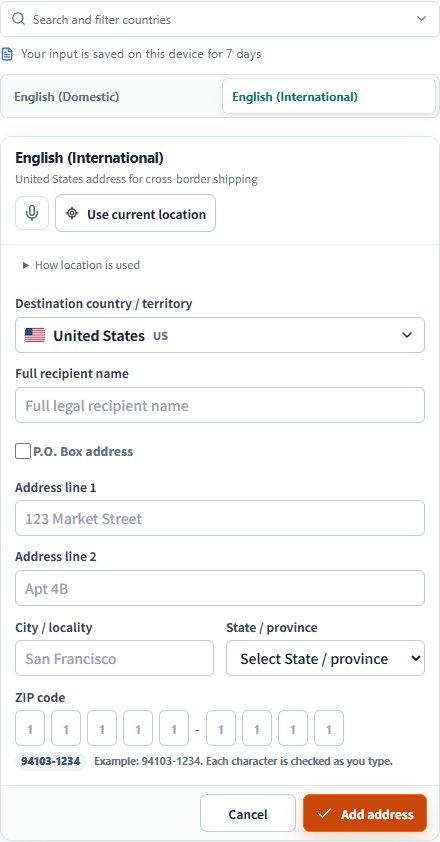
The actual address form — the final button is “Add address” Review Addresses on this device
Adding an address opens the address list. To return later, choose “View” beside “My Addresses” in Wallet. Use “Edit” or “Delete” for each address. The guest list has no copy button.
View addresses on this device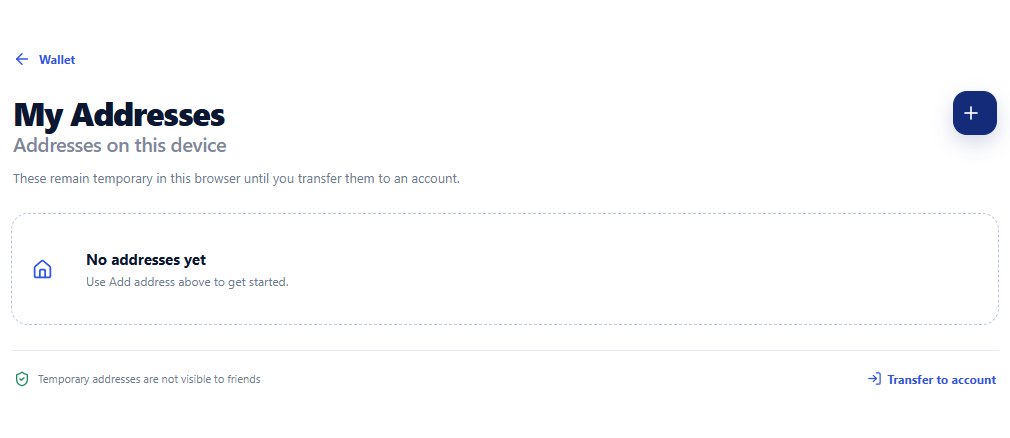
The actual address list — added addresses appear here
Sign in with Google to keep using your wallet.
Choose “Continue with Google” on the registration screen to sign in or create an account. New users complete the Terms of Use and Privacy Policy consent before temporary addresses transfer to their account. Friends and Map are available only after sign-in.
Open sign-up screen